Collapse flat triangles
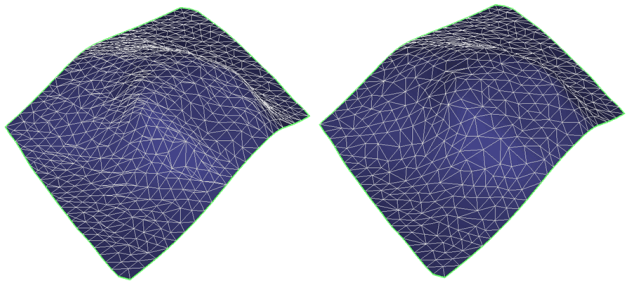
Before and after collapse (fewer triangles remain). Here, a rather large minimum angle was used for demonstration purposes showing that "pointy" triangles have been removed. click to enlarge
After checking for flat triangles, you can use this tool to remove all flat triangles and, where possible, the folded triangles at the boundary. If this operation fails to remove some of the folded triangles, you can use the Editing Tools to remove the remaining folded triangles. For more information, see Graphically editing tri-meshes.
-
From the list of available tri-meshes in the model, select the tri-meshes to check by selecting the check boxes or by right-clicking the list and making a selection from the context menu.
Folded triangles are shown in the 3D view so that you can easily locate them on the tri-meshes. -
In the Smallest angle field, specify the smallest angle to allow in a triangle. Triangles with smaller angles will be collapsed when the operation is executed.
-
Check the Keep watertight connections check box to keep associated nodes at surface intersections locked when collapsing triangles. This is required when the outputs are to be used for geomechanical modeling.
- Click OK or Apply. Only triangles inside the tri-meshes are removed. The boundary is only modified when two boundary nodes are on the exact same location.